Purpose
AnalysisGNN is a collaboration surface, not just a prediction button.
The app gives you a first-pass harmonic and structural analysis, but the important part is what happens after prediction. You can inspect labels in the score, decide where the model is useful, correct the places that need expert judgement, and keep those corrections synchronized with tables and exports.
That makes the workspace useful for automatic annotation, corpus creation, and analytical review. Instead of manually entering every label from scratch, you can use the model to accelerate repetitive work while keeping the final interpretation under human control.
Working principle: treat every model label as a proposal. Accept it when it is musically convincing, correct it when it is not, and use the correction log as the audit trail for your final corpus data.
Advanced information
Harmony and structure labels are predictions produced by an AI model. They can be incomplete, ambiguous, or wrong. This is especially important for Roman numerals, local keys, phrase boundaries, and cadences, where multiple interpretations can be musically defensible.
Step 1
Begin with the precomputed demo, then load your own score.
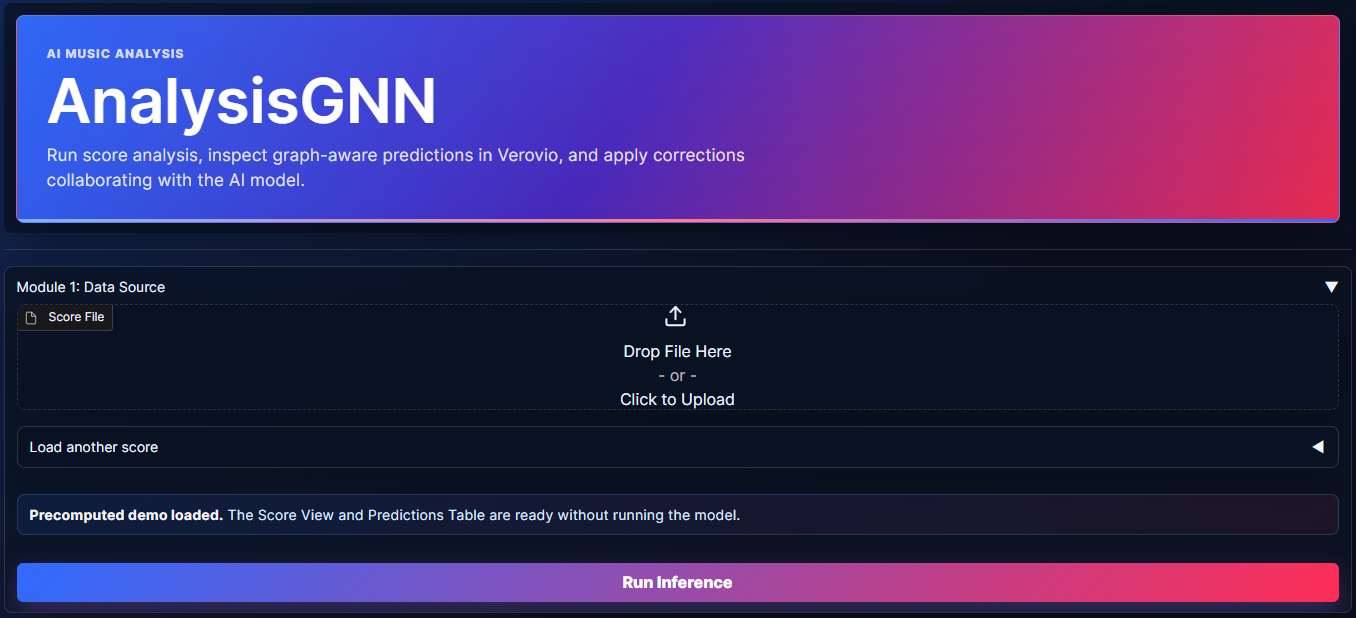
The Analysis page opens with a precomputed demo. This is intentional: it lets you see the score view and correction workflow immediately, without spending cloud inference time or waiting for a model run.
When you are ready to analyze your own material, use Module 1: Data Source. You can upload MusicXML, compressed MusicXML, MEI, or Kern/KRN files. You can also paste a raw public URL that points directly to one of those score files.
After the score is loaded, run inference. The app will move attention toward the workspace, where the visual score becomes the main place for inspection and correction.
Advanced information
A raw URL is a direct file URL, not a repository page. For example, a GitHub raw.githubusercontent.com MusicXML link is suitable, while a normal GitHub file-preview page is not. On cloud deployments, inference uses server compute; the demo avoids that cost because its analysis is bundled with the app.
Step 2
Use the score view as the main workspace.
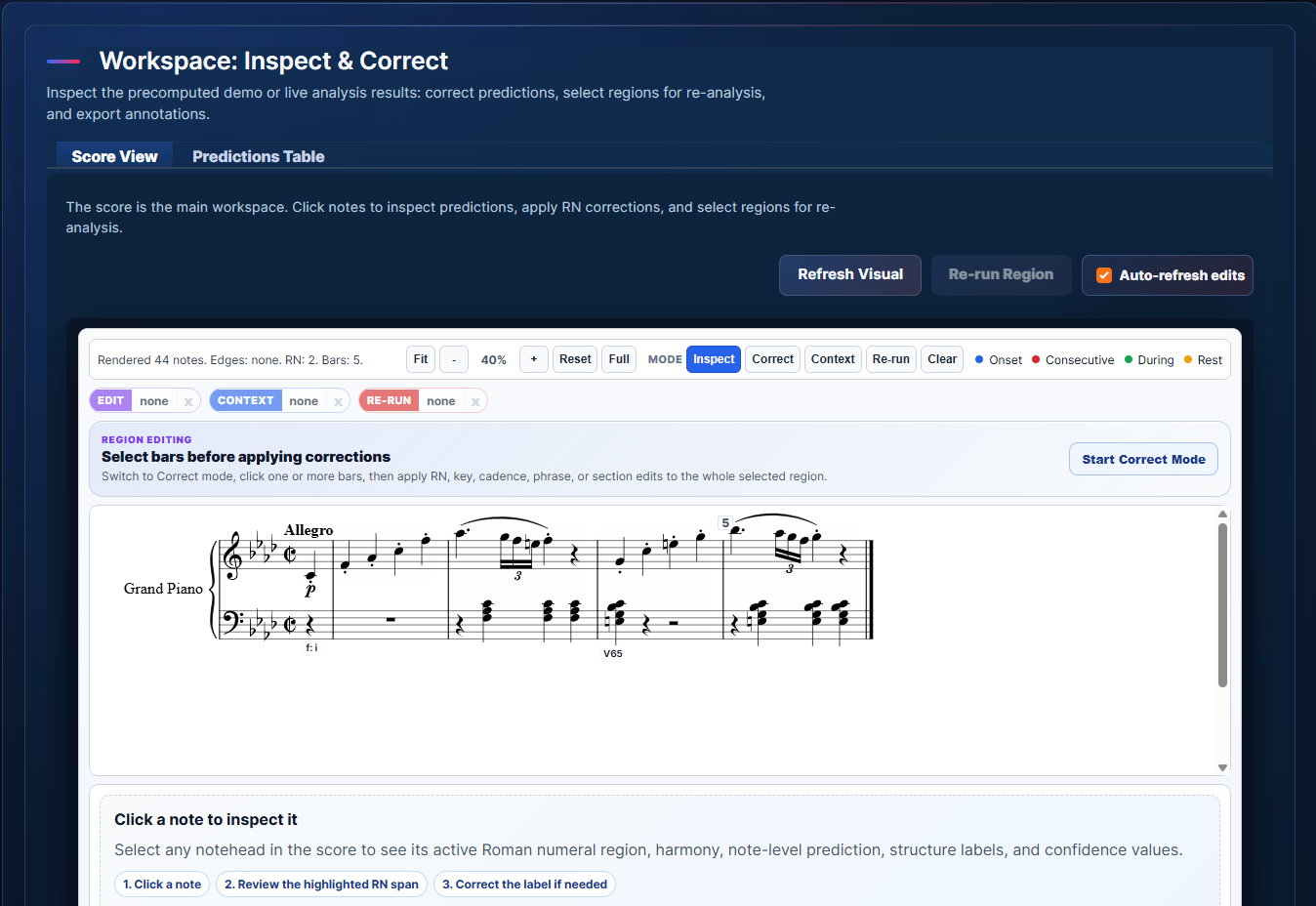
The Verovio score view is where the model output becomes readable as music. Roman numerals are printed below the lowest staff at the onset where a region begins. If the key has not changed, repeated key prefixes are omitted so the score stays easier to scan.
Click a note to inspect the active Roman numeral region. The app highlights the notes that share the current RN span from the selected onset forward until the next RN change. Below the score, the analysis panel shows the current harmony, note-level information, and structure predictions.
The toolbar is deliberately compact. Use Fit, zoom, Reset, and Full for navigation. Use the mode buttons to change what clicks mean: Inspect for reading, Correct for selecting an edit region, Context for fixed material, and Re-run for target material the model may revisit.
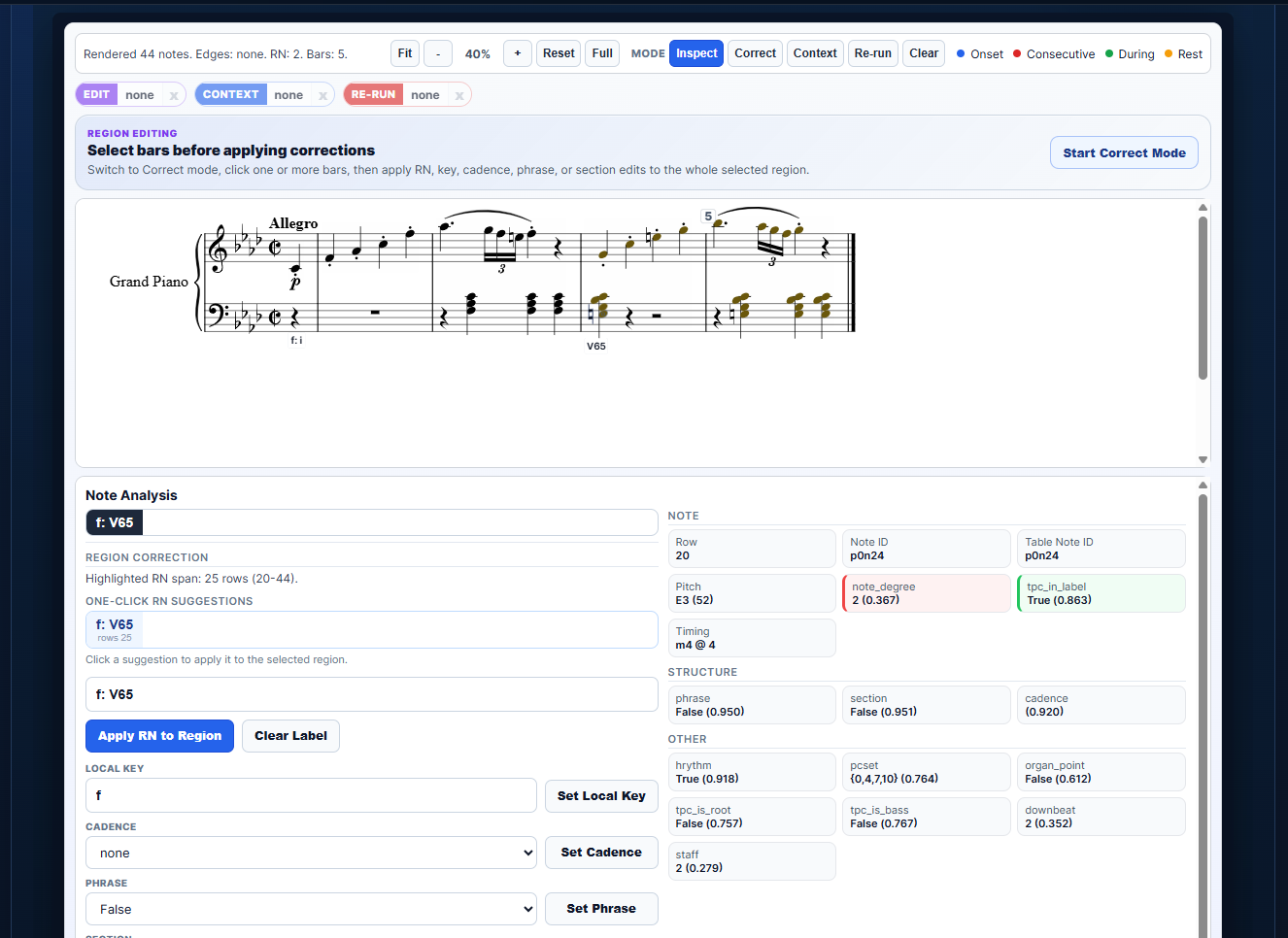
Structure predictions appear in the note analysis area. phrase predicts phrase endings, section predicts larger formal boundaries, and cadence predicts cadence types such as PAC, IAC, HC, DC, EC, or PC. Confidence values are displayed as a guide, not as a replacement for analysis.

Advanced information
Graph overlays show symbolic relationships such as onset, consecutive, during, and rest edges. They can help diagnose why graph-aware predictions behave a certain way, but they are not required for normal annotation. Non-chord-tone greying is also optional and should be refreshed only when you want that visual layer.
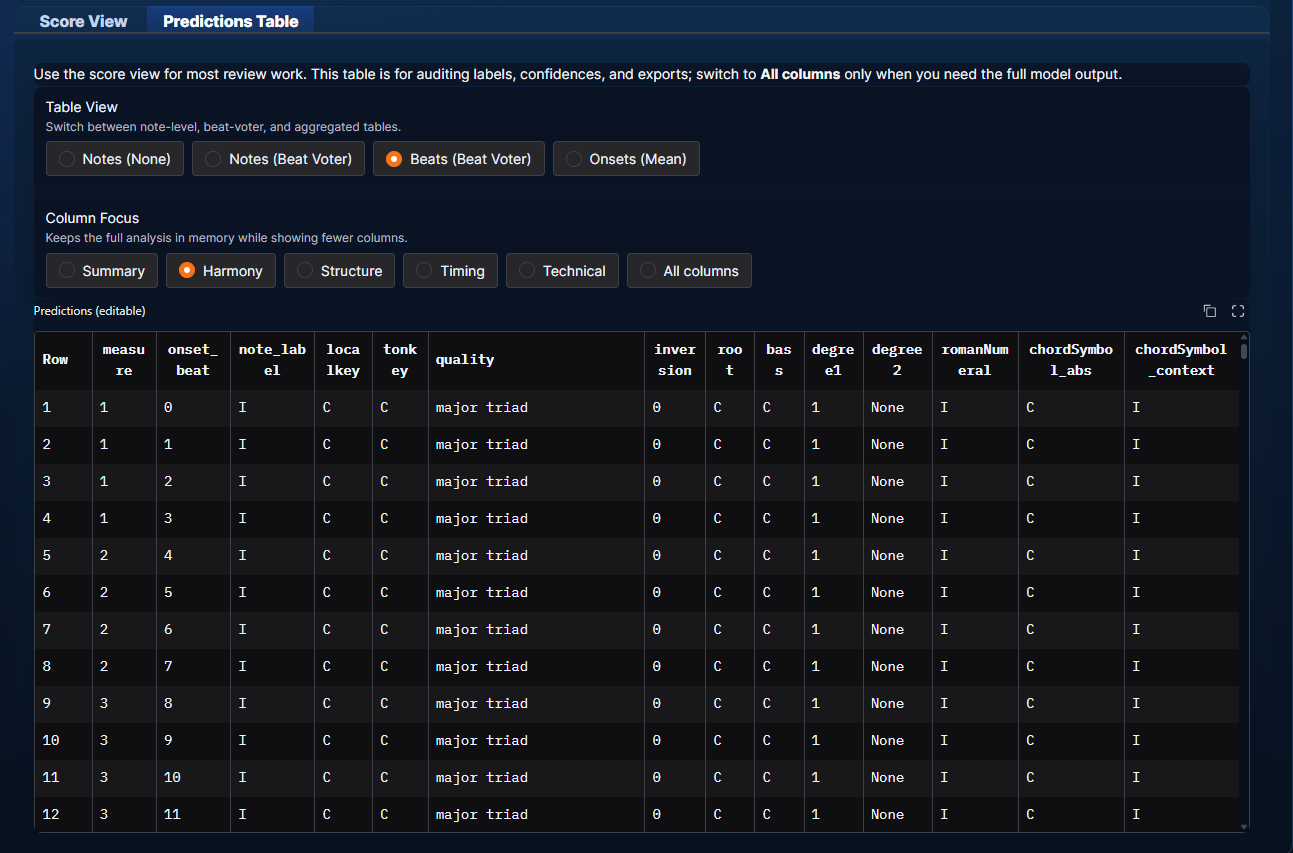
The Predictions Table is still available when you need an audit view. Start with Summary or Harmony columns, switch to beat-voter or onset aggregation when useful, and open All columns only when you need the complete model output.
Step 3
Correct regions, not isolated table cells.
Most useful corrections apply to a beat, a Roman-numeral span, a measure, or a passage. For that reason, AnalysisGNN is moving toward a region-first workflow. Select the region on the score, then apply the correction once.
Use Apply RN to Region when a selected passage should share a Roman numeral. Use Set Local Key when a stretch modulates or tonicizes a different key area. Use Set Cadence or the structure controls when the cadence, phrase, or section prediction needs correction.
Clear Label has a special meaning: it removes a local RN change and lets the selected notes inherit the previous active label. This is useful when the model starts a new label too early or prints a duplicate label that should simply continue the preceding analysis.
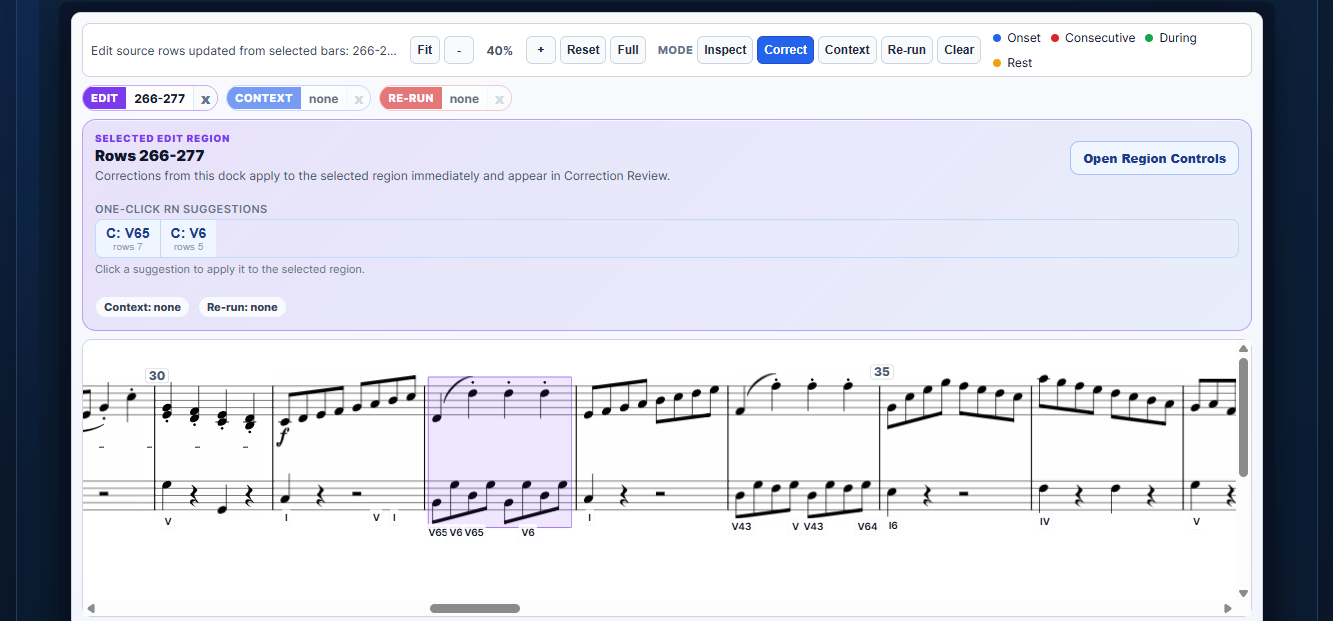
When Auto-refresh edits is on, the Verovio preview redraws after each correction. When you are making many edits in a row, turn it off, batch the corrections, then press Refresh Visual once. The table and correction state still update; the toggle only controls visual redraw timing.

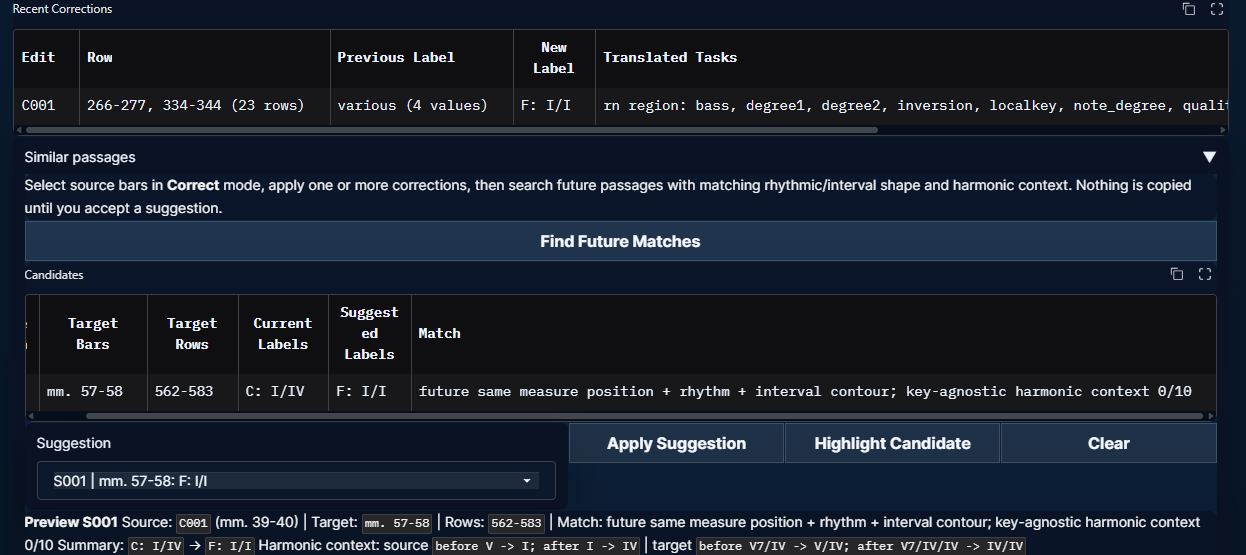
Recent corrections are shown close to the score so you do not need to scroll far to verify that an edit was registered. If an edit is not what you intended, use the undo control for recent corrections.
Advanced information
Correction entries update the corrected table first. The visual payload, CSV, DCML TSV, and annotated MusicXML are then rebuilt from that corrected state. This keeps manual edits authoritative even if you later use optional model re-analysis.
Step 4
Use AI assistance after you have established reliable corrections.
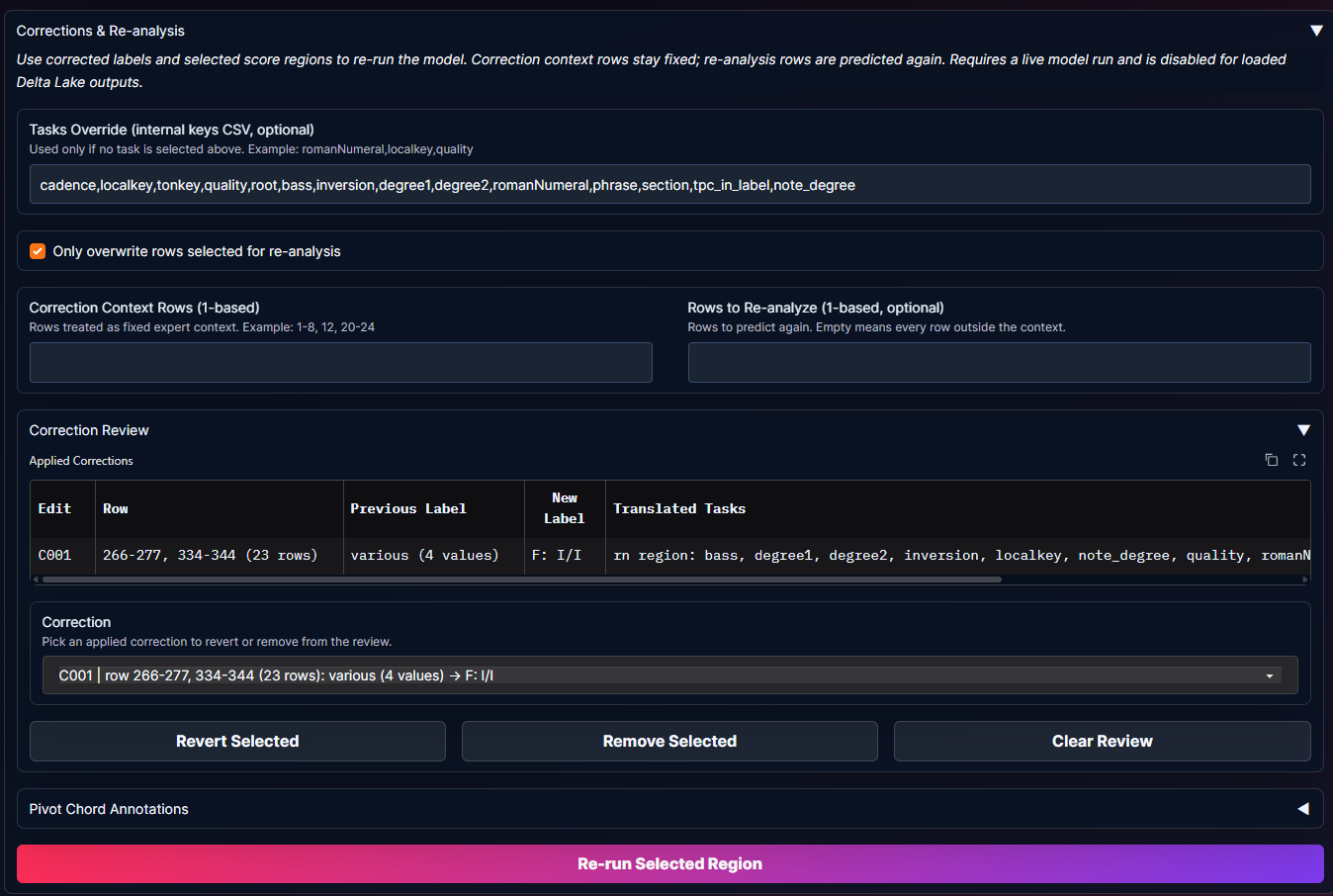
Manual corrections do not require re-running the model. Re-run is optional. It is most useful when you want the model to reconsider a target passage while keeping corrected context fixed.
The usual pattern is: correct a passage, mark it as Context, select another passage as Re-run, and then run the selected region. The audit panel reports which rows were used as context, which rows were targets, what changed, what stayed unchanged, and whether the model did not alter any visible labels.
Similar-passage suggestions support a more deterministic workflow. After correcting a source region, search for future passages with similar rhythmic shape, interval contour, and harmonic context. The app proposes candidates, but nothing is copied until you explicitly accept a suggestion.
Advanced information
For repeated material, direct copy suggestions are often more predictable than model re-analysis. Re-run can still be useful when local context changes enough that a copied correction would be too rigid. In either case, corrected context rows should remain fixed and target rows are the only rows the model may overwrite.
Step 5
Export the corrected analysis when the score is ready enough.
The Export corrected analysis section sits below the score workflow because export is the end of the annotation loop. Use it when you want to move the corrected result into another tool, archive it, or continue manual editing outside the web app.
CSV is useful for inspection and spreadsheet workflows. DCML harmonies TSV is useful for corpus-style harmonic annotation. Annotated MusicXML is useful when you want to open the score in MuseScore and keep correcting visually without running inference again.

Recommended loop: inspect the demo, load your score, run inference, correct obvious regions, set key passages, review recent corrections, optionally search similar future passages, and export the corrected score.
Advanced information
Exports are generated from the corrected table, not from the original model output alone. That means RN edits, local-key edits, cadence and structure corrections, pivots, inherited clear-label regions, and accepted similar-passage suggestions are intended to travel with the exported result.
Next
Try the workflow on the Analysis page.
Start with the bundled demo if you only want to learn the interface. Load your own score when you are ready to spend inference time and create a corrected analysis.